



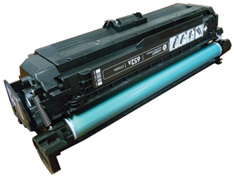
 The M651/680 series of multifunction color laser printers are based on a 45 ppm black and color 1200 x 1200 Dpi engine, 4800 DPI with RET. The cartridges are an all in one type cartridge that consists of the toner supply, drum, and waste chamber.
The M651 and M680 share the same black cartridge, but use different color cartridges. The method to remanufacture them all is the same but the colors use different chips and have different yields.
The printers based on the M651 engine are the:
HP Color LaserJet Enterprise M651n
HP Color LaserJet Enterprise M651dn
HP Color LaserJet Enterprise M651xh
The cartridges used in the M651 machines are the:
CF320A (Black) 652A 11,500 pages $206.99 List*
CF330X (Black HY) 654X 20,500 pages $271.99 List*
CF331A (Cyan) 654A 15,000 pages $379.99 List*
CF332A (Yellow) 654A 15,000 pages $379.99 List*
CF333A (Magenta) 654A 15,000 pages $379.99 List*
CE265A (Toner collection unit) $17.99 List*
The printers based on the M680 engine are the:
HP Color LaserJet Enterprise M680dn
HP Color LaserJet Enterprise M680f
HP Color LaserJet Enterprise M680z
The cartridges used in the M651 machines are the:
CF320A (Black) 652A 11,500 pages $206.99 List*
CF320X (Black HY) 653X 21,000 pages $249.99 List*
CF321A (Cyan) 653A 16,500 pages $335.99 List*
CF322A (Yellow) 653A 16,500 pages $335.99 List*
CF323A (Magenta) 653A 16,500 pages $335.99 List*
CE265A (Toner collection unit) $17.99 List*
* Pricing current as of March 2015.
Required Tools
1) Toner approved vacuum.
2) A small screw driver (Common Style)
3) A Phillips head screwdriver
4) Needle Nose Pliers
5) Spring hook
Supplies Required
Toner for use in the HP M651/M680 series
New replacement chip
New Long Life Drum
New Wiper Blade
New developer roller sealing blade (optional)
New recovery blade (optional)
Drum Cover
Lint free Cloths
Conductive grease
Isopropyl alcohol
Cotton Swabs
The pins in these cartridges are stepped. In other words the outside is thicker than the inside. To remove the pins, you must carefully shave the plastic away from the pins. The procedure is described below
1) Remove the spring from the label side of the cartridge. See Figure 1
2) With a razor knife, carefully shave the plastic from the heads of the hinge pins on both sides of the cartridge.
3) On the label side only, drill a shallow hole on each side of the pin.
4) Remove the pins with flush cutting wire cutters. The smaller pin fits on the contact side of the cartridge, the long pin on the label or gear side.
5) On the gear side, press in on the plastic locking mechanism.
6) On the opposite side lift up on the black lever. Lift the two halves apart.
7) On the waste chamber, remove the two screws from the drum gear end cap. Press in on the tab as shown and remove the end cap. There is no need to remove the opposite side end cap.
8) Remove the drum.
9) Remove the PCR by lifting up on the black and white PCR locking arms. Remove the PCR Assembly.
10) To remove the wiper blade, the amber film assembly needs to be removed. Slide a razor knife under the plastic mounting bar, and remove the assembly.
11) Remove the two screws from the wiper blade. Slide the razor knife along the back edge of the blade to release it from the glue. Remove the Wiper blade.
12) Clean out all the waste toner from the chamber. Try not to get any toner on the WB seal if possible.
13) Clean the felt seals on each end of the wiper blade. If the WB glue has toner on it, clean it off with alcohol and a foam swab. If it does not become sticky again, it needs to be removed and a good silicone caulk used to seal the blade off. GE 100% Silicone and Phenoseal are two good brands for this.
14) Install the new wiper blade and 2 screws. If you removed the WB glue, seal the back edge of the blade with the silicone now.
15) The amber film assembly is held in place with double sided tape. If this is not sticking or a new wiper blade is being used, replace the tape. Replace the film assembly.
16) Clean the PCR with your preferred cleaner and install in the cartridge with the PCR holders. Make sure you lock the locking arms in place.
17) Install the drum. Short hub side onto the long drum ground pin.
18) Install the end cap and two screws.
19) Place the waste chamber aside.
20) On the supply chamber, remove the screw from the gear side end cap.
21) Press in on the tab and remove the end cap.
22) On the center gear, press on the locking tab to release the gear. Remove all the gears as shown except for the mixing blade gear and the sealing strip gear. The mixing blade gear is attached to the mixing blade inside the hopper and is very difficult to re-attach properly.
23) On the contact side, remove the 2 screws, press in on the tab and remove the end cap.
24) Remove the three developer roller drive gears.
25) On the gear side inner end cap, remove the two screws and end cap.
26) Remove the developer roller.
27) Remove single screw and contact side inner end cap.
28) Remove the two screws from the doctor blade and start to lift the blade up. There is glue on either rend of the blade. As you lift the blade up, slice the glue away from the blade with the razor knife.
29) On the right side of the chamber lift up the felt developer roller seal. Lift it from the front side and lay it over the back.
30) Remove the white felt washers from both sides of the feed roller.
31) Pry out the rubber feed roller bushing from the right side.
32) Remove the feed roller.
33) Clean out the remaining toner and fill with the correct color of toner for use in the M651/M680 series toner.
34) When a seal is available, install the seal onto the seal rails. Pull the release tape off 1” at a time and press the seal in place as you go.
35) Remove the seal port and slide the seal pull tab through the slot. Install the seal port.
36) Install the feed roller and rubber bushing.
37) Install the feed roller felt washers.
38) Press the developer roller felt seal back in place. Make sure it fits under the retaining blade. If needed, clean the adhesive with alcohol and a foam swab.
39) Use the appropriate shims to gap the blade and install the doctor blade and two screws. Make sure the sticky seals on either rend of the blade seal correctly. If the material is no longer sticky clean it with alcohol or replace it with a small amount of silicon.
40) Clean the contacts and replace the conductive grease on the inner contact end cap. Install the inner contact end cap and screw.
41) Install the cleaned developer roller. (DO not use any chemicals to clean this. A lint free cloth works fine.
42) Install the inner gear end cap and two screws.
43) Install the gears in the order shown. If you installed a seal, slide the seal end through the take up gear and wrap the loose tail tight on the roller.
44) Install the remaining gears in the order shown.
45) Install the outer gear end cap and screw.
46) Place the triple gear on the developer roller shaft and fit into the spring assembly on the end cap. Install the opposite side end cap and install the screw.
47) Place the two halves together contact side first. On the gear side, press the lever in place. On the contact side snap the lock up into the end cap.
48) Install the two pins. Large pin to the label or gear side of the cartridge.
49) Install the spring.
50) Remove the chip by cutting the plastic off the edges of both side of the chip.
51) Remove and replace the chip. Make sure you have the correct color chip and the correct series!
52) If the new replacement chip is loose in the slot. Close off the top edges with small amounts of hot glue.
53) Install the drum cover on to the cartridge.
Repetitive Defect Chart:
Distance Our description
27.0mm Primary Charge Roller
32.0mm Developer Roller Sleeve
44.0mm Secondary Transfer Unit
51.0mm Primary Transfer Roller
63.0mm Secondary transfer backing roller
76.0mm OPC Drum
76.0mm Fuser Sleeve
80.0mm Fuser Pressure Roller